Baby Monitor Keeps Disconnecting? 12 Fixes That Work
Dropped signals, blank screens, and crackly sound usually trace back to a few fixable causes. Run a quick test to find yours, then work through 12 fixes that suit most monitors.




Updated October 22, 2026
AI Summary


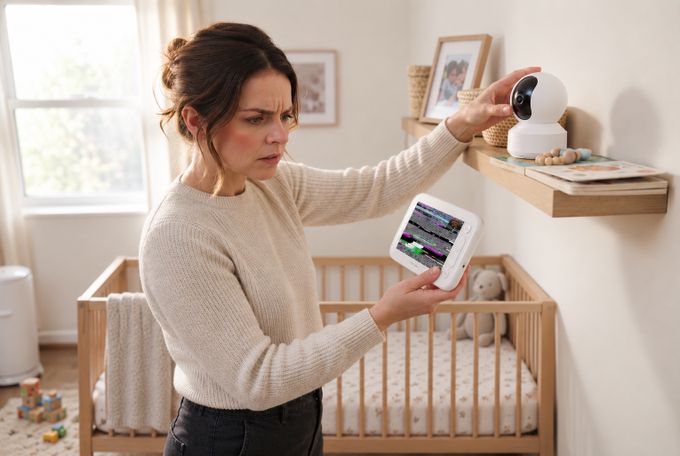
If your baby monitor keeps losing signal, the cause is usually one of three things: your home's layout, radio interference, or a crowded Wi-Fi network. The good news is that small changes often bring back a steady connection, and most take just a few minutes. Many cost nothing and apply whether your monitor uses Wi-Fi or a direct link to the parent unit.
Start with a quick 3-step test to find the cause. Then work through 12 fixes, plus what to do when the screen goes black or the sound cuts out. We also cover when a non-Wi-Fi monitor can spare you the problem.
Is It the Monitor, the Wi-Fi, or the Router? A 3-Step Test
If your baby monitor keeps losing signal, these three checks show where the problem sits: the monitor, your Wi-Fi, or your router.
- Test in one room. Put the camera and parent unit in the same room with a clear line of sight. If the drops stop, distance or walls are the cause.
- Test your Wi-Fi (Wi-Fi monitors only). Run a speed test right next to the camera. Then try the camera on a phone hotspot or a second network. If the baby monitor stream keeps dropping there too, suspect the camera or its power. If the drops stop, suspect your router or channel.
- Swap the power adapter. Plug in a different adapter and retest. Unstable power can look a lot like a signal problem.
4 Reasons Baby Monitors Lose Signal
Four causes account for most dropouts, and each one points to a different fix.
1. Home Layout and Building Materials
Dense walls, reinforced concrete, metal appliances, and mirrors can all weaken a wireless signal. A concrete wall usually blocks much more than drywall does. That's why a monitor that works well across one room can struggle two rooms away.
2. Everyday Device Interference
Microwaves, cordless phones, and nearby Wi-Fi networks all add noise, and Bluetooth gear shares the same 2.4 GHz band as Wi-Fi [1]. Keep these devices apart from your monitor and router. Avoid stacking them together on one shelf.
3. Wi-Fi Congestion
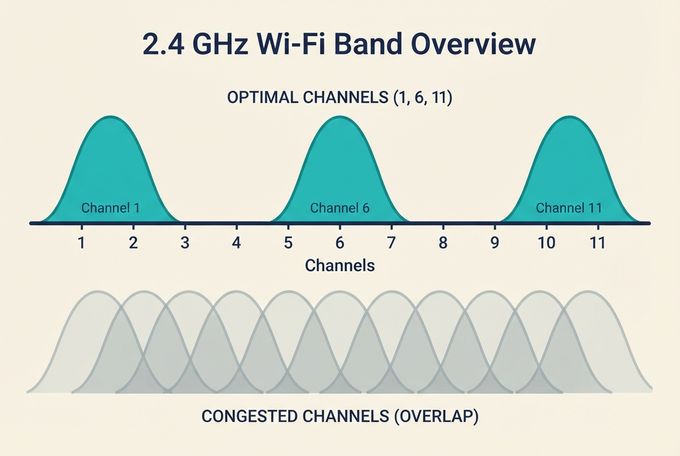
On 2.4 GHz Wi-Fi, only channels 1, 6, and 11 don't overlap. Too many neighbors on overlapping channels can slow or drop connections. This is common in apartments, as our test of how monitors handle congested Wi-Fi shows.
4. Crowded Radio Bands
Your monitor, your router, and many other household gadgets share the same slices of airwaves, so a little noise is normal. These shared slices are called unlicensed ISM bands. Devices that use them must accept interference from other devices [2]. That's why careful setup matters.
12 Quick Fixes to Stop Constant Disconnects
Which fixes help depends on how your monitor connects, so we've split them into two groups.
Fixes for Wi-Fi Monitors
The first five fixes apply to Wi-Fi baby monitors that connect through your router. Using a non-Wi-Fi monitor? Skip to the fixes for all monitors.
1. Choose the right Wi-Fi band. Many Wi-Fi cameras only support 2.4 GHz. If yours supports both bands, use 5 GHz when the camera sits within a room or two of the router. Use 2.4 GHz when it needs more range. Moving heavy devices like laptops and TVs to 5 GHz or 6 GHz also frees up 2.4 GHz [1].
2. Use non-overlapping channels. If Auto keeps picking a crowded channel, set your 2.4 GHz channel to 1, 6, or 11. The table below covers the details.
3. Prefer 20 MHz width on 2.4 GHz. Wider channels overlap more and can drop data in busy areas, so Apple recommends 20 MHz for this band [3].
4. Reduce mesh hops. Place mesh nodes so fewer wireless hops sit between the camera and your gateway. You can also wire the backhaul.
5. Use a simple network name. A plain 2.4 GHz network name without special characters can help some app-based monitors connect.
Fixes for All Monitors
The remaining fixes apply to every monitor, whether it uses Wi-Fi or a direct link to the parent unit.
6. Move both units up and in the open. Keep the camera and parent unit 6 to 12 inches from walls, metal, and glass. Keep them off the floor and out of corners.
7. Separate from noisy neighbors. Keep monitors and routers 3 to 6 feet from microwaves, cordless phone bases, and Bluetooth speakers. Want more detail? Here's how baby monitors interfere with Wi-Fi and what to do about it.
8. Update firmware. Install any updates that improve stability. That includes updates for your monitor and its app, plus your router.
9. Reboot interference sources. Power-cycle the router, switch off Bluetooth speakers, and test with the microwave off.
10. Shorten the distance. Move the parent unit closer, or relocate the camera to a nearer outlet, to find your range limit.
11. Use a different outlet and adapter. Unreliable power can cause reboots that look like disconnects.
12. As a last resort, reset and re-pair. Here's how to reset a Wi-Fi baby camera that loses connection:
- Remove the paired camera from the parent unit or the app.
- Power off both the camera and the parent unit.
- Use the reset button or reset hole described in your manual to reset the baby monitor camera.
- Power both back on and re-pair them with the camera next to the parent unit.
If you have a Babysense monitor, this Help Center article on signal loss walks you through the process in more detail.
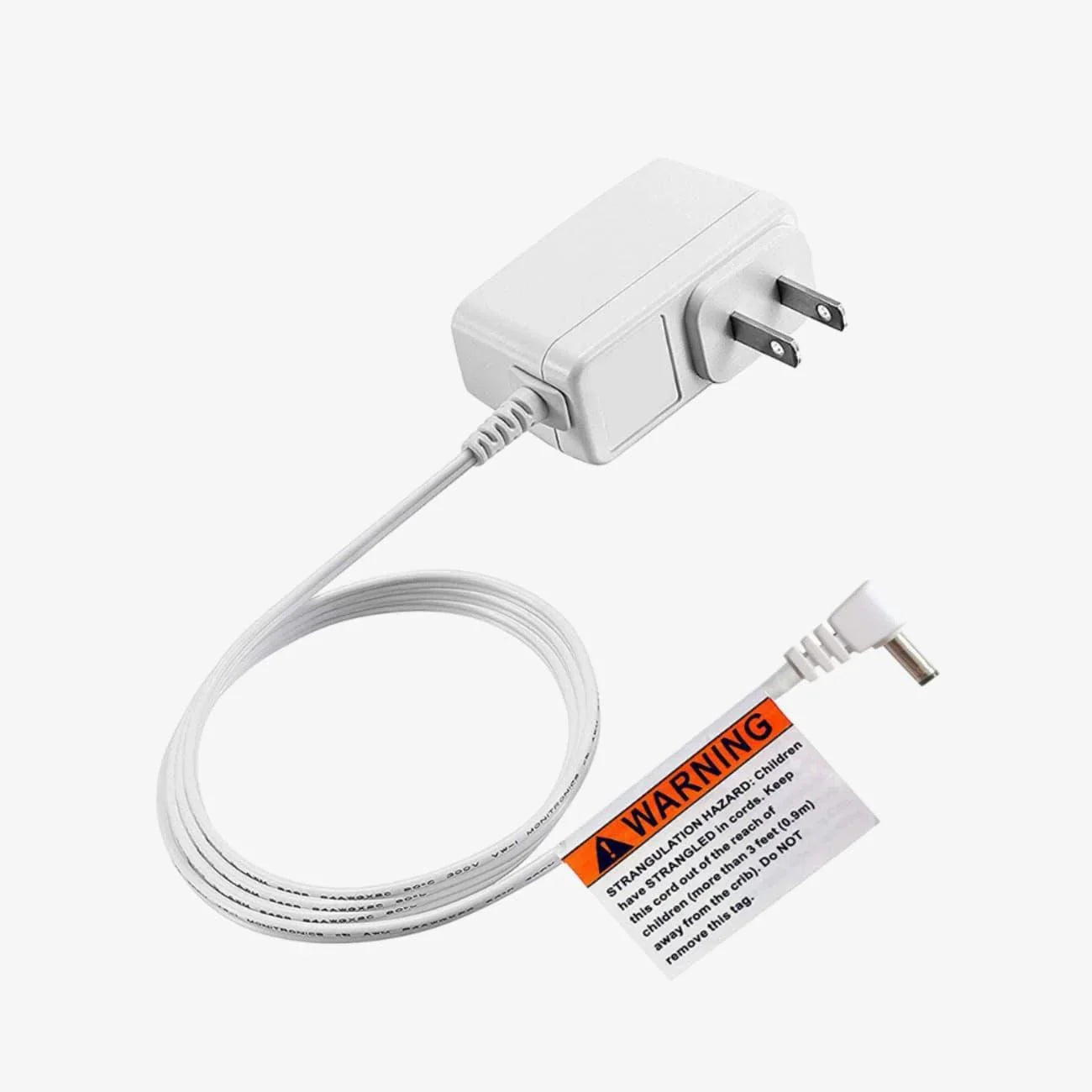
Faulty adapter or parent unit?
Replace a Babysense adapter, parent unit, or add-on camera without buying a new monitor.
Why Does the Baby Monitor Screen Go Black or the Sound Cut Out?
If your baby monitor keeps going black or turning off, one of three plain causes is usually behind it. The same three can explain a baby monitor sound cutting out or cutting in and out:
- Screen timeout or ECO mode: Power-saving settings can blank the display when the room is quiet. Check your manual for your model's screen-timeout setting.
- A weak or failing power adapter or battery: When the unit isn't getting steady power, it can shut off or cut out.
- A brief signal drop: Sometimes the screen isn't off at all. A short dropout just looks like a blackout, so the baby monitor screen goes black until the link returns. Sound can cut in and out for the same reason.
Babysense owners can also read more in our Help Center article on monitors turning off.
Best Placement for Stronger Signal
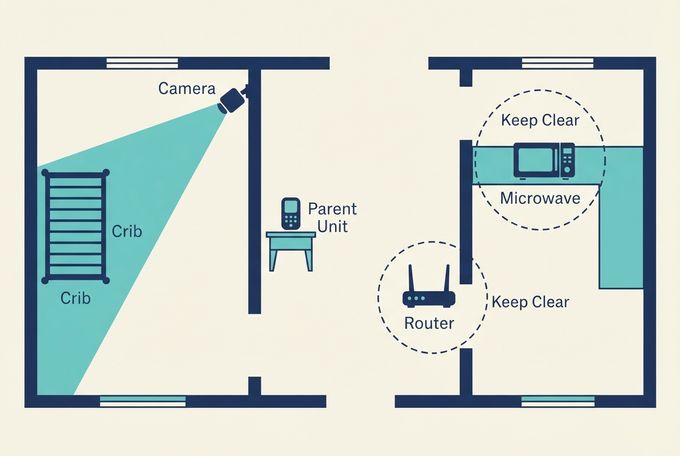
Where you put the monitor does more for your signal than most settings, so start with these basics:
- Line of sight helps most. Fewer walls and no large metal objects in the way is ideal.
- Mount the camera 5 to 6 feet high with a clear angle to the crib. Put the parent unit near the center of your home.
- Keep space around antennas. Avoid bookshelves, thick curtains, and mirrors right behind the unit.
Channel and Router Settings That Help
This table shows which settings matter for each type of monitor.
Setting | Wi-Fi Monitors | Non-Wi-Fi Monitors |
|---|---|---|
Channel | Use channel 1, 6, or 11 on 2.4 GHz. They are the only channels that don't overlap, which cuts down noise. | Not applicable |
Channel Width | Set 20 MHz on 2.4 GHz [3] | Not applicable |
Band | Move other devices to 5 GHz or 6 GHz to free up 2.4 GHz [1] | Not applicable |
Spacing From Other Devices | Keep 3 to 6 feet from routers, microwaves, and cordless phone bases | Keep 3 to 6 feet from routers, microwaves, and cordless phone bases |
Testing Locations | Test the camera in two or three spots to find a clean path | Test the monitor in two or three spots to find a clean path |
When to Consider a Non-Wi-Fi Monitor
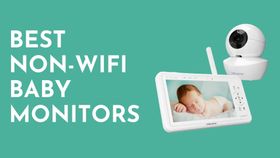
If your home has thick walls or a crowded network, a non-Wi-Fi monitor can be a dependable option. It links the camera and parent unit directly, so your internet speed, router load, and app servers don't come into it. Not sure which type suits you? Compare Wi-Fi vs. non-Wi-Fi monitors, or see the best non-Wi-Fi monitors. Every radio can pick up some interference, but a direct link avoids a common cause of dropouts.
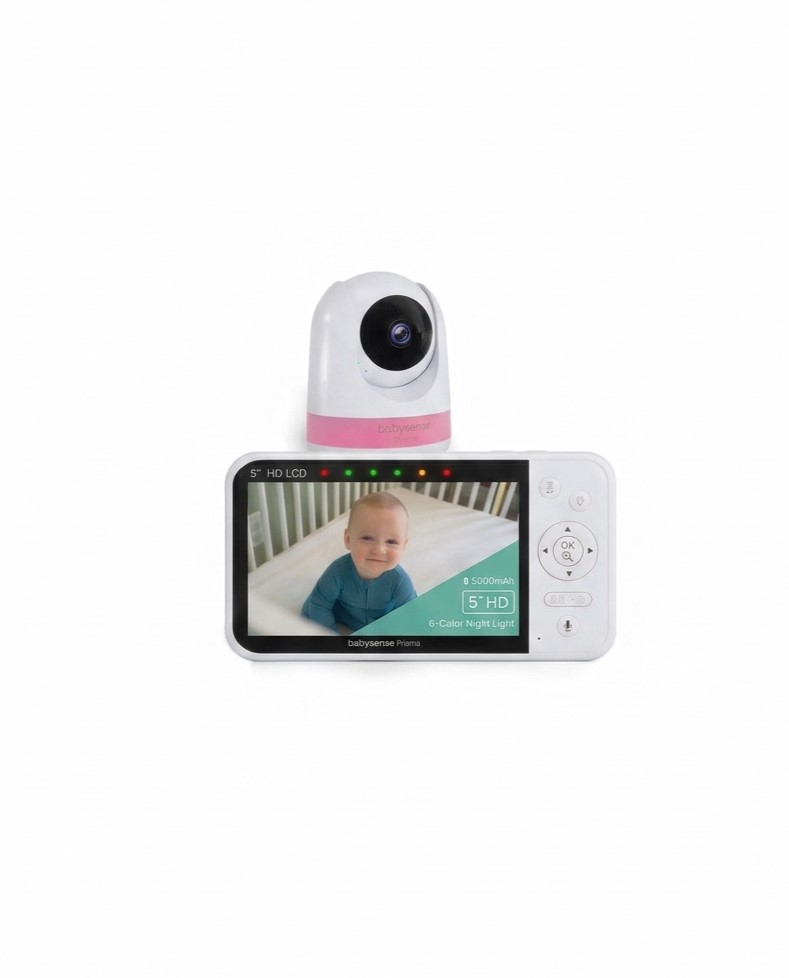
Why parents choose Babysense Prisma (non-Wi-Fi)
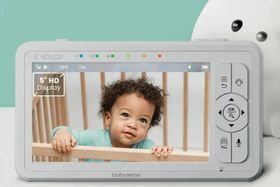
The Prisma has a 5-inch HD screen, up to 1,000 feet of range in open space, and a 4,000 mAh battery. You also get two-way talk, a night light, and room for up to four cameras. A frequency-hopping (FHSS) link keeps the camera and parent unit connected directly.
Skip the Wi-Fi dropouts.
Prisma links the camera and parent unit directly, so your router and internet speed never touch the picture. 5" HD screen, long range, and room for up to 4 cameras.
Steady Signal Starts With the Right Setup
A baby monitor losing connection is almost always fixable. Work out where the drop happens first. Then adjust placement, interference, and Wi-Fi settings one change at a time. If the problems keep coming back, a different type of connection may suit your home better.
If you'd rather skip router settings, Babysense's non-Wi-Fi video monitors link straight to the parent unit using a secure local connection. Want remote viewing as well? The dual-mode Touch in our smart Wi-Fi collection offers both a direct link and app access.
References
1. Apple Inc. (2025, April 23). Resolve Wi-Fi and Bluetooth issues caused by wireless interference. Apple Support. https://support.apple.com/en-us/102319
2. Electronic Code of Federal Regulations. (2026). 47 CFR § 15.5: General conditions of operation. U.S. Government Publishing Office. https://www.ecfr.gov/current/title-47/chapter-I/subchapter-A/part-15/subpart-A/section-15.5
3. Apple Inc. (2026, July 14). Recommended settings for Wi-Fi routers and access points. Apple Support. https://support.apple.com/en-us/102766
FAQs
Why does my baby monitor disconnect at the same time every night?
A nearby device may be turning on at that time, like a microwave, cordless phone, or smart plug. Move the monitor and router apart, then set your 2.4 GHz channel to 1, 6, or 11.
Is 5 GHz better for a Wi-Fi baby monitor?
5 GHz is faster and often less crowded, but it has a shorter range through walls. Many Wi-Fi cameras only support 2.4 GHz. If yours supports both bands, use 5 GHz within a room or two of the router, and 2.4 GHz when it needs more range.
Can a non-Wi-Fi monitor still have interference?
Yes, because all radios can pick up some interference. The benefit is that a non-Wi-Fi monitor doesn't depend on your internet or router load. That removes a major cause of dropouts.
Where should I put my baby monitor for the best signal?
High and clear. Avoid thick walls, metal, and mirrors between the camera and the parent unit, and keep both 3 to 6 feet from other wireless bases. Keep the camera and its cord at least 6 feet from the crib.
Will changing channels affect other devices?
It can help all of them. Picking channel 1, 6, or 11 reduces overlap, which lowers noise for every 2.4 GHz device in your home. Some devices may reconnect briefly after the change.
What happens to my baby monitor alerts if the Wi-Fi goes down overnight?
On Wi-Fi monitors, remote viewing and app alerts pause until the connection returns. If your monitor also has an in-room digital link between the camera and parent unit, that link keeps working because it doesn't use your router. Non-Wi-Fi and dual-mode monitors work this way.
Do these fixes work for Hello Baby, VTech, Momcozy, or Vava monitors?
Placement, interference, power, and reset steps apply broadly to most baby monitors. Wi-Fi settings, like bands and channels, apply only to app-based models. Check your manual for model-specific reset steps.
What should I try before returning a baby monitor that keeps disconnecting?
If your baby monitor keeps losing signal, run the 3-step test first, then work through the 12 fixes above. If nothing helps, contact support before you decide (bibysensemonitors.com/pages/contact-us). Babysense also offers a 100-night free trial on its monitors, so you have time to test fixes, and a non-Wi-Fi monitor may suit your home better.